Renaming files one at a time is a tedious task, especially when you’re dealing perhaps thousands of files. When you’re organizing your photos library, cleaning out downloads or reorganizing folders for projects, knowing how to efficiently rename multiple files can save you hours of. In this tutorial I’ll show you various methods that are practical – that range from integrated OS tools, to robust commands, and an easier and modern solution with Renamer.io.

Why Renaming Files in Bulk Matters
I’ve found myself often drowning in the sea of muddled names for files – screenshots marked “Screenshot (1).png”, “Screenshot (2).png” and the list goes on. It’s a pain especially when you need to arrange the files for personal or professional projects. A well-named structure for files improves searchability as well as collaboration and automation.
Here’s the reason why bulk renaming files make an enormous difference:
- Organization: Organizes and keeps related files together in a logical way.
- Consistency: Prevents confusion while working with various systems.
- Automation: Tools and scripts can help process files more efficiently when names are based on patterns.
- Professionalism: Properly naming your business appears better and can be beneficial in business or client environments.
Let’s now look at how to do it.
Renaming Multiple Files at Once on Windows
Windows offers a variety of ways to change the name of files in bulk, ranging from basic File Explorer tricks to advanced Command Prompt or PowerShell commands.
1. Renaming Files via File Explorer
This is the most simple method to follow and doesn’t require any technical skills.
Step-by-step:
- Navigate to the folder that contains your files.
- Pick all the files that you want to change their names (Ctrl + A or Shift + C).
- Right-click on the first file and choose Rename.
- Write your name as your base for the year, for instance, “HolidayPhoto”.
- Press Enter.
Windows will automatically rename selected files to “HolidayPhoto (1)”, “HolidayPhoto (2)”, etc. It’s fast, but it’s isn’t as flexible.
Pros:
- Simple and quick.
- No additional tools are needed.
Cons:
- You aren’t able to add prefixes or suffixes or modify extensions in a hurry.
- There is no assistance for patterns with advanced features or dynamic substitutions.
2. Using Command Prompt
For those who want some control The Command Prompt (cmd) offers the option of batch renaming using simple commands.
Example: Change the name of the entire .txt files to .log
ren *.txt *.log This command replaces .txt extension of all files within the folder with .log.
Example Prefix: Add a prefix all files.
for %f for %f (*. *) do ren "%f" "new_%f"This will add “new_” in front of every name of a file within the folder.
Example Replace spaces using underscores
for %f in (* *) do ren "%f" "%f:_=_%"The following replaces underscores with spaces, which makes filenames command-line easy.
Although they’re powerful however, these commands can become complicated quickly. If you make mistakes, there’s not an undo option, which can be risky when you rename hundreds of files.
3. Using PowerShell
PowerShell provides more options over Command Prompt, especially for patterns-based Renaming.
Example: Replace a portion of the name
Get-ChildItem *.txt | Rename-Item -NewName This replaces “old” with “new” in all .txt filenames.
Example: Add numbering sequence
$i=1; Get-ChildItem *.jpg | ForEach-Object This generates filenames like Photo_1.jpg, Photo_2.jpg, and the like.
PowerShell is perfect for users who have advanced skills or repetitively task renaming across folders. If, however, you’re looking for something simpler and more visually appealing The next option could be ideal.
Renaming Files is a breeze by using Renamer.io
After trying every method I came across an easier way to do it by using Renamer.io. It’s a dedicated bulk-file tool for renaming that is specifically designed specifically for Windows, Mac, and Linux that makes large-scale renaming as easy as it is possible.
Why I Prefer Renamer.io
Contrary to command-line tools Renamer.io provides an interface that is visual. I can see precisely the filenames that will change prior to making sure. The preview alone saved me from many errors.
How to Use Renamer.io – Step-by-Step
- Install and download the app on Renamer.io.
- Start the application, and then drag your folders or files to the main screen.
- Choose your renaming pattern:
- Add suffixes or prefixes (e.g., “Project_”, “_Final”).
- Replace text segments.
- Add numbers automatically.
- Change extensions of files or change the case (UPPERCASE lowercase).
- Watch the changes live in real-time. You’ll see both new and old names for the files.
- Click Rename when you’re happy.
That’s it. All files selected are immediately renamed.
What I love the my most about it is that Renamer.io is the same for Windows, macOS, and Linux. So, whether I’m cleaning up downloads on my Windows PC or organizing media on my MacBook I use the same interface on all three platforms.
Renaming Multiple Files on Mac
macOS users can do it simple since Finder comes with an integrated bulk renaming tool.
1. Using Finder’s Built-in Rename Tool
Step-by-step:
- Choose all files you wish to change the name of in Finder.
- Right-click and select Rename Items.
- Choose a renaming option:
- Replace Text
- Add Text
- Format (for sequential numbers)
- Input the pattern you want to use or text.
- Click Rename.
Finder instantly changes the name of selected files and provides you with a an overview of what’s to come.
Example:
If you select “Format” and type “VacationPhoto” the Finder will rename your files to “VacationPhoto 1”, “VacationPhoto 2” and so on.
Pros:
- Simple and clean.
- Integrated into macOS.
Cons:
- There are a limited number of options for complicated pattern changes.
- There is no scripting capability.
2. Using Terminal on macOS
For the more experienced users, macOS Terminal offers flexible options that are similar to Linux. The mv command (move) can change the name of files. When used with loops, it is extremely powerful.
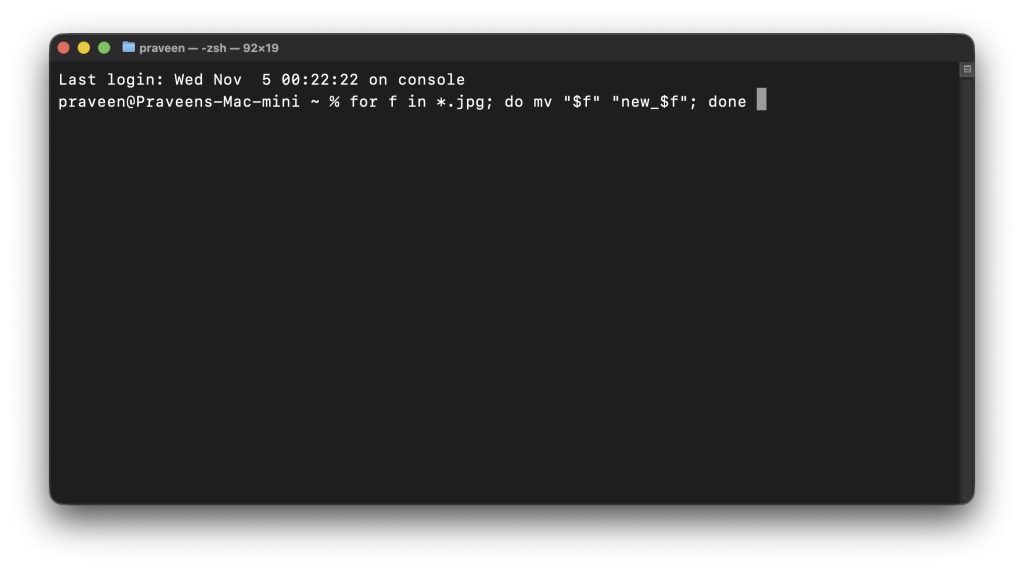
Example: Add a prefix to all JPG files.
for f in *.jpg; do mv "$f" "new_$f"; done Example Change underscores to spaces.
for f in *\ *; do mv "$f" "$"; done Example Replace the word in filenames
for f in *old*; do mv "$f" "$"; done The small scripts that they use can process a large number of files in just a few seconds. The trick is to test the scripts on a small amount first to be sure.
Renaming Files in Bulk on Linux
Linux users have a myriad of options, from basic shell commands to more advanced software for renaming.
1. Utilizing the Rename Command
The rename command in Linux is among the most efficient tools to batch file changing names.
Example: Change all .txt to .log
change name 's/.txt/.log*.txt *.txtExample Use the following example: Replace “draft” with “final”
change name to's/draft/final*.docx *.docxExample: Add a numbering system to files
a=1; for i in *.png; do new=$(printf "image_%03d.png" "$a"); mv "$i" "$new"; let a=a+1; done There are also GUI-based applications such as “pyRenamer” or “KRename” If you prefer a more visual interface.
2. Using Nautilus or Dolphin File Manager Extensions
If you’re using GNOME or KDE you can make use of extensions that are renamed bulk.
- Nautilus Rename Tool: Right-click – Rename – Use patterns.
- KRename Available within KDE’s Dolphin manager, with advanced filters.
Both permit live previews of the program, batch processing and custom-designed naming patterns without using the terminal.
Tips for Safer Bulk Renaming
After working for years with thousands of documents, here are the lessons I’ve learned
- Always back up your data prior to performing large renaming operations.
- Try out patterns with a small sample before distributing them all over the world.
- Avoid special characters such as
?,:, or*in filenames. - Keep consistent naming formats for related files (for example, “project_version_date”).
- Preview changes as often as it is possible, particularly in the case of GUI tools such as Renamer.io.
Common Mistakes to Avoid
- Overwriting files If two files that have been renamed are given identical names, one may be replaced.
- Use absolute paths in the wrong way When using commands, incorrectly placed slashes can lead to mistakes.
- Inconsistent numbering: Use that you have zero-padding (001, 022 and 033) to ensure that files are ordered correctly.
- Renaming extensions without examining extensions can lead to compatibility issues.
Frequently Asked Questions (FAQ)
Can I undo a bulk rename?
If you’re using Renamer.io There is an undo option that allows you to instantly revert. File Explorer and Finder, however, don’t offer an undo history after you quit the application.
Does renaming files alter the contents of files?
Renaming only changes the file name and not the actual content.
Can I rename files within subfolders automatically?
Yes. In Renamer.io you can select to add subdirectories. On the command line, you may make use of loops that recurse, as well as the find command in Linux and macOS.
What’s the safest method to change the names of hundreds of files?
I would recommend using a specialized tool like Renamer.io since it offers live previews and allows you to reverse the changes if you need to.
Final Thoughts
Bulk renaming isn’t only about saving time. It’s about bringing order to the chaos of digital data. No matter if you’re running Windows, macOS, or Linux you are now able to be in complete control of the filenames you use. For creators, professionals or anyone who appreciates the appearance of a tidy file system provides clarity.
Personally, I use Renamer.io for most of my renaming requirements. It is a combination of an automation’s power with the ease of drag-and-drop. After you’ve tried it, you’ll be amazed by how you’ve ever done without it.
